# Featured product
## **Adding a section**
The section is static on a **product page** template, it was added initially and cannot be removed.
## **Section settings**
1. **`Product`** - product picker.
### **Media**
1. **`Enable zoom`** - the setting allows you to enable the Zoom function that appears when you click on the image;
2. **`Show arrows on mobile`** - the setting is responsible for whether the slider arrows will be shown in the mobile version;
3. **`Media layout`** - the setting allows you to choose the appearance of the product image gallery:
* **`Carousel`** - horizontal slider;
* **`Stacked`** - vertically stacked images one below the other;
* **`Stacked 2 columns`** - vertically stacked images, two images in one row below the other.
* **`Stacked 2 columns with big image`** - vertically stacked images, one big image and 4 small ones, then repeat.
**⚠️ Only for Product layout: Two columns. For a Three Columns value, the media will always be a Carousel**
1. **`Thumbnails position`** - setting allows you to select the location for the thumbnails, only works if the media layout is a carousel. Has two options: left and bottom;
2. **`Media height`** - the setting allows you to select the size of the image. Has several options: F*ull size, Square, Fit to screen.* Note: “*Fit to screen”* on the mobile will be the same as “Full size”.
3. **`Make smooth scroll for stacked gallery`** - in the `Stacked`, `Stacked 2 columns`, `Stacked 2 columns with big image` gallery mode, it has Thumbnails on the left, clicking on which will scroll to the desired image. This parameter will determine whether the movement will be instantaneous or smooth.
### General
1. **`Layout`** - setting is responsible for the structure of the template:
* **`Two columns`** - setting divides the template into 2 columns, with media on the left and blocks on the right.
* **`Three columns`** - setting divides the template into 3 columns, with blocks on the left and right and media in the middle.
2. **`Show message of taxes included`** - if taxes are included in the price of the product in the store, then this parameter will control the visibility of the corresponding message;
3. **`Show pay installments`** - if the store has the right to sell by installments and this feature is enabled in the store settings, then this parameter will control the visibility of the installment block;
### Size guide
Allow customers to view a size-guide button. The content for the size guide can be unique for each product based on the metafields.
1. **`Show size guide`** - the setting is responsible for showing/hiding the popup and the button for opening the popup;
2. **`Button label`** - popup button text;
3. **`Button icon`** - the icon of the size guide button;
4. **`Popup heading`** - the title of the size guide popup;
5. **`General tab label`** - the text for size guide general tab;
6. **`Model tab label` -** the text for the size guide model tab;
**To show the size guide:**
* Create product metafield with **Name**: “Size guide page”, **Namespace and key**: `size_guide.page`. **Content type** must be `Page`;
* Create a page with content for a size guide (you can select a unique page with a size guide for every product. For shorts, skirts, etc):
* Add a page in the product meta field (page content must not be empty);
In the Size guide popup you can add information about the product model information:
**Follow the steps:**
1. Create product metafield with **Name**: “Size guide model image”, **Namespace and key**: `custom.size_guide_model_image`. **Content type** must be a `file` (images only).
1. Create product metafield with **Name**: “Size guide model info”, **Namespace and key**: `custom.size_guide_model_info`. **Content type** must be `Multi-line text`**.**
1. Go to the product in the admin and add values to these metafields. You can set both or one of these fields to see tabs in the size guide popup.
1. Now when you open the Size guide popup on the product you will see tabs with the default size guide and size guide for the product model.
### **Colors**
1. **`UI button color`** - the setting allows you to set the UI button's color. Will also be used for shadow color;
2. **`UI button background color`** - the setting allows you to set the UI button's background color;
3. **`UI buttom border color`** - the setting allows you to set the UI button’s border color.
### **Layout**
1. **`Container width`** - a container width of the section. If the “Inherit” value is selected then the container width is based on the group 'Layout' settings in the Theme settings;
2. **`Desktop offset top`** - the **top** indent of the section on the **desktop**;
3. **`Desktop offset bottom`** - the **bottom** indent of the section on the **desktop**;
4. **`Mobile offset top`** - the **top** indent of the section on the **mobile**;
5. **`Mobile offset bottom`** - the **bottom** indent of the section on the **mobile**.
## **Blocks settings**
### **Block Badges**
1. **`Block column position`** - specifies the column in which the block is located when the section setting `Layout` in value `Three columns`;
2. **`Desktop offset top`** - the **top** indent of the section on the **desktop**;
3. **`Desktop offset bottom`** - the **bottom** indent of the section on the **desktop**;
4. **`Mobile offset top`** - the **top** indent of the section on the **mobile**;
5. **`Mobile offset bottom`** - the **bottom** indent of the section on the **mobile**.
The block displays tags added to the product according to the template - `label__%tag%:modifer`:
* **`label__`** - tag prefix by which tags are selected for output;
* **`%tag%`** - display tag;
* **`:modifer`** - color modifier;
The modifier can have 2 values: `primary` and `secondary` or completely absent;
For example, if you want to add two labels: “Sale” and “Top” with primary and secondary styles you need to add these tags for the product:
* **label\_\_Top:secondary**
* **label\_\_Sale:primary**
**HINT**: you can also add an icon to the your labels.
To do this you need:
1. Copy the name of the label from the admin product page without color identificator (”:primary”, “:secondary”). For example, if your label is “**label\_\_top:secondary**”, just a copy “label\_\_top”
1. Prepare an image file with the name in next format: \[label name].png . Where \[label name] is a name of your label that you copied in the previous step. “PNG” format is important. So your file name must be a “**label\_\_top.png**”. If you have a product tag with few words, like a “label\_\_Top sale:secondary”, you need replace a white space with a “-” symbol. So a file name for the “label\_\_Top sale:secondary” tag will be “**label\_\_Top-sale.png**”. The size of the image must be **40x40 pixels**.
2. Upload an image in the admin panel “Content / Files”
### **Block Badge images**
1. **`Block column position`** - specifies the column in which the block is located when the section setting `Layout` in value `Three columns`;
2. **`Desktop offset top`** - the **top** indent of the section on the **desktop**;
3. **`Desktop offset bottom`** - the **bottom** indent of the section on the **desktop**;
4. **`Mobile offset top`** - the **top** indent of the section on the **mobile**;
5. **`Mobile offset bottom`** - the **bottom** indent of the section on the **mobile**.
**To show the badge images:**
* Create product metafield with **Name**: “Badge images”, **Namespace and key**: **`custom.badge_images`**. **Content type** must be **`File`** as **`List`**;
* Add badge images to the product:
### **Block Vendor and SKU**
**General**
* **`Show SKU`** - the setting that allows to show SKU of the product;
* **`SKU text`** - the text of the SKU field. You need to include the “{SKU}” in the text field, which will be replaced with the product’s SKU number;
* **`Show vendor`** - the setting that allows you to show the product’s vendor;
* **`Make vendor link to collection`** - the setting that allows to wrap a vendor into a link.
**Layout**
1. **`Block column position`** - specifies the column in which the block is located when the section setting `Layout` in value `Three columns`;
2. **`Desktop offset top`** - the **top** indent of the section on the **desktop**;
3. **`Desktop offset bottom`** - the **bottom** indent of the section on the **desktop**;
4. **`Mobile offset top`** - the **top** indent of the section on the **mobile**;
5. **`Mobile offset bottom`** - the **bottom** indent of the section on the **mobile**.
### **Block Title**
1. **`Block column position`** - specifies the column in which the block is located when the section setting `Layout` in value `Three columns`;
2. **`Desktop offset top`** - the **top** indent of the section on the **desktop**;
3. **`Desktop offset bottom`** - the **bottom** indent of the section on the **desktop**;
4. **`Mobile offset top`** - the **top** indent of the section on the **mobile**;
5. **`Mobile offset bottom`** - the **bottom** indent of the section on the **mobile**.
### **Block Sale Timer**
### **General**
1. **`Text`** - the text before the countdown timer;
2. **`Icon`** - the image before the countdown timer. (Recommended size 48x48 px).
### **Colors**
1. **`Text`** - the text before the countdown timer color;
2. **`Timer text`** - the timer cells’ text color;
3. **`Timer background`** - the timer cells’ background color.
### **Layout**
1. **`Block column position`** - specifies the column in which the block is located when the section setting `Layout` in value `Three columns`;
2. **`Desktop offset top`** - the **top** indent of the section on the **desktop**;
3. **`Desktop offset bottom`** - the **bottom** indent of the section on the **desktop**;
4. **`Mobile offset top`** - the **top** indent of the section on the **mobile**;
5. **`Mobile offset bottom`** - the **bottom** indent of the section on the **mobile**.
**To show the countdown timer:**
* Create product metafield with **Name**: “Promo time”, **Namespace and key**: **`custom.promo_timer_date`**. **Content type** must be **`Date and time`**;
* Add promo time to the product
### **Block Options**
1. **`Variant picker`** - select a view of variant options type. **Note:** if you have enabled a color swatch option then the option that is related to color swatch will be always like a button. You can select “**Buttons**” or “**Dropdown**”;
**Layout**
1. **`Block column position`** - specifies the column in which the block is located when the section setting `Layout` in value `Three columns`;
2. **`Desktop offset top`** - the **top** indent of the section on the **desktop**;
3. **`Desktop offset bottom`** - the **bottom** indent of the section on the **desktop**;
4. **`Mobile offset top`** - the **top** indent of the section on the **mobile**;
5. **`Mobile offset bottom`** - the **bottom** indent of the section on the **mobile**.
### **Block Quantity**
**Layout**
1. **`Block column position`** - specifies the column in which the block is located when the section setting `Layout` in value `Three columns`;
2. **`Desktop offset top`** - the **top** indent of the section on the **desktop**;
3. **`Desktop offset bottom`** - the **bottom** indent of the section on the **desktop**;
4. **`Mobile offset top`** - the **top** indent of the section on the **mobile**;
5. **`Mobile offset bottom`** - the **bottom** indent of the section on the **mobile**.
### **Block Price**
It displays the price of the product or the selected option. Also outputs the unit cost if the product has a unit cost instead of a quantity cost.
1. In this block, a message will be displayed stating that taxes are included in the price;
2. In this block, the installment purchase form will be displayed.
**Layout**
1. **`Block column position`** - specifies the column in which the block is located when the section setting `Layout` in value `Three columns`;
2. **`Desktop offset top`** - the **top** indent of the section on the **desktop**;
3. **`Desktop offset bottom`** - the **bottom** indent of the section on the **desktop**;
4. **`Mobile offset top`** - the **top** indent of the section on the **mobile**;
5. **`Mobile offset bottom`** - the **bottom** indent of the section on the **mobile**.
### **Block Add to cart**
**General**
1. **`Block column position`** - specifies the column in which the block is located when the section setting `Layout` in value `Three columns`;
2. **`Button style`** - add to cart button style;
3. **`Button 'Buy it now' style`** - **'Buy it now'** button style;
4. **`Show additional payment buttons`** - add "Buy it now" buttons;
5. **`Show recipient information form for gift cards`** - allows customers to send gift cards on a scheduled date along with a personal message (works only on a gift product).
**Layout**
1. **`Desktop offset top`** - the **top** indent of the section on the **desktop**;
2. **`Desktop offset bottom`** - the **bottom** indent of the section on the **desktop**;
3. **`Mobile offset top`** - the **top** indent of the section on the **mobile**;
4. **`Mobile offset bottom`** - the **bottom** indent of the section on the **mobile**.
### **Block Pickup availability**
The block has no settings, it reflects the addresses where the product is available for pickup.
1. **`Block column position`** - specifies the column in which the block is located when the section setting `Layout` in value `Three columns`.
## **Layout**
1. **`Desktop offset top`** - the **top** indent of the section on the **desktop**;
2. **`Desktop offset bottom`** - the **bottom** indent of the section on the **desktop**;
3. **`Mobile offset top`** - the **top** indent of the section on the **mobile**;
4. **`Mobile offset bottom`** - the **bottom** indent of the section on the **mobile**.
### **Block Drawers**
Displays up to 3 additional buttons with a popup:
* **`Description`** - the setting allows you to output the product description;
* **`Custom drawer 1`** - the setting allows you to choose any page to show its content in the drawer;
* **`Custom drawer 2`** - the setting allows you to choose any page to show its content in drawer 2.
1. **`Block column position`** - specifies the column in which the block is located when the section setting `Layout` in value `Three columns`.
### Product description
1. **`Show description`** - the setting allows you to show the product description button;
2. **`Button label`** - the setting allows you to set the button label for the drawer toggler;
3. **`Drawer heading`** - the setting allows you to set the heading for the drawer.
### Custom drawers
1. **`Page`** - the setting allows you to select a page to show its content in the drawer;
2. **`Button label`** - the setting allows you to set the button label for the drawer toggler.
**Layout** settings allow you to select offsets of the section.
### **Block Complementary products**
With this block, you can show complementary products of the current product. To configure upsell products you can use the “**Search & Discovery**” APP.
1. **`Block column position`** - specifies the column in which the block is located when the section setting `Layout` in value `Three columns`;
2. **`Heading`** - setting allows you to set heading for the block.
**Layout**
1. **`Desktop offset top`** - the **top** indent of the section on the **desktop**;
2. **`Desktop offset bottom`** - the **bottom** indent of the section on the **desktop**;
3. **`Mobile offset top`** - the **top** indent of the section on the **mobile**;
4. **`Mobile offset bottom`** - the **bottom** indent of the section on the **mobile**.
### **Block Highlight Point**
With this block, you can add simple text content with an icon.
You can add a simple text block with an icon.
1. **`Block column position`** - specifies the column in which the block is located when section setting `Layout` in value `Three column`;
2. **`Icon image`** - the setting allows you to set an icon for the message;
3. **`Text`** - the text of the block.
**Layout**
1. **`Desktop offset top`** - the **top** indent of the section on the **desktop**;
2. **`Desktop offset bottom`** - the **bottom** indent of the section on the **desktop**;
3. **`Mobile offset top`** - the **top** indent of the section on the **mobile**;
4. **`Mobile offset bottom`** - the **bottom** indent of the section on the **mobile**.
### **Block Inventory status**
With this block, you can show a message about product variant’s inventory status.
You can help customers detect which product variant has a low/high stock inventory.
If a variant is not available - the block will be hidden.
1. **`Block column position`** - specifies the column in which the block is located when section setting `Layout` in value `Three column`;
2. **`Low stock text`** - the text that appears when variant inventory quantity is less or equals ”Low stock threshold” value;
3. **`Low stock icon`** - the icon of the “Low stock text”;
4. **`High stock text`** - the text that appears when variant inventory quantity is more than the “Low stock threshold” value;
5. **`High stock icon`** - the icon of the “High stock text”;
6. **`Low stock threshold`** - the setting that allows you to select the minimum number of variant inventory quantities to show a “**Low stock text**” message. If the variant inventory quantity is more than the value of the setting, then “**High stock text**” will appear.
**Layout**
1. **`Desktop offset top`** - the **top** indent of the section on the **desktop**;
2. **`Desktop offset bottom`** - the **bottom** indent of the section on the **desktop**;
3. **`Mobile offset top`** - the **top** indent of the section on the **mobile**;
4. **`Mobile offset bottom`** - the **bottom** indent of the section on the **mobile**.
### Block Gift product
Add a block to show the “Add gift box” button in the product section. This block doesn’t have any settings. You can learn more about the “Gift wrap button” in the “Gift wrap product” section.
1. **`Block column position`** - specifies the column in which the block is located when the section setting `Layout` in value `Three columns`.
**Layout**
1. **`Desktop offset top`** - the **top** indent of the section on the **desktop**;
2. **`Desktop offset bottom`** - the **bottom** indent of the section on the **desktop**;
3. **`Mobile offset top`** - the **top** indent of the section on the **mobile**;
4. **`Mobile offset bottom`** - the **bottom** indent of the section on the **mobile**.
## **Block Stock Alert**
1. **`Block column position`** - specifies the column in which the block is located when the section setting `Layout` in value `Three columns`.
### Button settings
1. **`Button label`** - the text for the button. Required field;
2. **`Button icon`** - the icon for the button.
### Form settings
1. **`Heading`** - the popup title text field. Required field;
2. **`Email label`** - the label for the input. Required field;
3. **`Button label`** - the label for the submit button. Required field;
4. **`Button style`** - style of the submit button;
5. **`Success message`** - the message that the form was sent successfully. Required field.
### **Layout**
1. **`Desktop offset top`** - the **top** indent of the section on the **desktop**;
2. **`Desktop offset bottom`** - the **bottom** indent of the section on the **desktop**;
3. **`Mobile offset top`** - the **top** indent of the section on the **mobile**;
4. **`Mobile offset bottom`** - the **bottom** indent of the section on the **mobile**.
**Translations settings:**
1. **`Product notify me message`** - the message that will be sent to the email when the user submits the form. Using "{{ product\_title }}" in the message allows you to replace it with the product title Required field.
**“Stock Alert” logic:**
* The "**Stock Alert**" button is displayed when the product is "Sold out";
* When clicking on the "**Stock Alert**" button, a popup with a form will be displayed;
* The user can enter the "Email" form;
* The form has two hidden fields. Message - contains the message that is specified in the translations in the "Product notify me message" field. ProductURL - contains a link to the variant of the current, selected "Sold out" product;
* If the form is sent successfully, the email will be sent and a "Success message" will be displayed;
* If the form is sent unsuccessfully, an "Error message" will be shown.
### **Block Question Form**
With this block, you can add a button to the product form that triggers a popup with the Shopify contact form (but with some additional fields).
That allows customers to send emails to you with questions about the current product. The field with the product URL is filled automatically based on the product and his selected variant.
1. **`Block column position`** - specifies the column in which the block is located when the section setting `Layout` in value `Three columns`.
### Button settings
1. **`Button label`** - the text for the button. Required field;
2. **`Button icon`** - the icon for the button.
### Form settings
1. **`Heading`** - the heading for popup form;
2. **`Email label`** - the label for the email field. Required field;
3. **`Name label`** - the label for the name field. Required field;
4. **`Phone label`** - the label for the phone field. Leave blank to hide;
5. **`Product URL label`** - the label for the product URL field. Required field;
6. **`Message label`** - the label for the message field;
7. **`Success message`** - the text of the success message after the form is submitted;
8. **`Submit button label`** - the text for the submit button.
9. **`Button style`** - style of the submit button.
### **Layout**
1. **`Desktop offset top`** - the **top** indent of the section on the **desktop**;
2. **`Desktop offset bottom`** - the **bottom** indent of the section on the **desktop**;
3. **`Mobile offset top`** - the **top** indent of the section on the **mobile**;
4. **`Mobile offset bottom`** - the **bottom** indent of the section on the **mobile**.
### **Block Custom Text Box**
With this block, you can display a text field (`input type='text`'), which will represent the `line_item` property of the product. When a product is added to a cart with a filled field, the value of this field will be added to the cart, checkout, and order.
### Settings
1. **`Block column position`** - specifies the column in which the block is located when the section setting `Layout` in value `Three columns`;
2. **`Field label`** - the setting is responsible for the label text for the input;
3. **`Required text`** - the setting is responsible for the label text for the checkbox.
**Layout**
1. **`Desktop offset top`** - the **top** indent of the section on the **desktop**;
2. **`Desktop offset bottom`** - the **bottom** indent of the section on the **desktop**;
3. **`Mobile offset top`** - the **top** indent of the section on the **mobile**;
4. **`Mobile offset bottom`** - the **bottom** indent of the section on the **mobile**.
**Custom Text Box** **logic:**
If the `Required text` is not filled in, only the text input will be displayed. In this case, if the field is filled - the user information will be added to the order.
If `Required text` is filled in, a checkbox will be displayed under the `Custom Text Box` with a message from that field. If the checkbox is not clicked OR the `Custom Text Box` is empty, the product cannot be added to the cart, and the corresponding error is displayed.
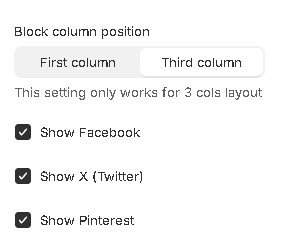
### Block Share
With this block, you can allow customers to share your product page.
1. **`Block column position`** - specifies the column in which the block is located when the section setting `Layout` in value `Three columns`;
2. **`Show Facebook`** - show a Facebook social share link;
3. **`Show X (Twitter)`** - show a X(Twitter) social share link;
4. **`Show Pinterest`** - show a Pinterest social share link.
**Layout**
1. **`Desktop offset top`** - the **top** indent of the section on the **desktop**;
2. **`Desktop offset bottom`** - the **bottom** indent of the section on the **desktop**;
3. **`Mobile offset top`** - the **top** indent of the section on the **mobile**;
4. **`Mobile offset bottom`** - the **bottom** indent of the section on the **mobile**.
### Block Benefits
With this block, you can add three blocks with some short information about your services, guarantees, or something like that.
1. **`Block column position`** - specifies the column in which the block is located when section setting `Layout` in value `Three column`.
**Benefits**
You can add max 2 blocks of this type and 3 “Benefit” items per block. They have the same settings:
* **`Icon`** - the icon of the benefit item;
* **`Heading`** - the title of the benefit item;
* **`Link label`** - the link text of the benefit item;
* **`Link url`** - the link URL of the benefit item.
**Layout**
1. **`Desktop offset top`** - the **top** indent of the section on the **desktop**;
2. **`Desktop offset bottom`** - the **bottom** indent of the section on the **desktop**;
3. **`Mobile offset top`** - the **top** indent of the section on the **mobile**;
4. **`Mobile offset bottom`** - the **bottom** indent of the section on the **mobile**.
### **Block @app**
The block allows you to connect applications, such as Reviews, etc.
Show block on the third column when section setting `Layout` in value `Three column`.
### Block Custom liquid
1. **`Block column position`** - specifies the column in which the block is located when section setting `Layout` in value `Three column`;
2. **`Custom liquid`** - setting allows you to add your liquid code.
You can learn more about liquid here - .
**Layout**
1. **`Desktop offset top`** - the **top** indent of the section on the **desktop**;
2. **`Desktop offset bottom`** - the **bottom** indent of the section on the **desktop**;
3. **`Mobile offset top`** - the **top** indent of the section on the **mobile**;
4. **`Mobile offset bottom`** - the **bottom** indent of the section on the **mobile**.
## **Additional information**
1. To select complementary products, add the Search & Discovery app (Shopify app). [Learn more](https://help.shopify.com/manual/online-store/search-and-discovery/product-recommendations)
.webp?alt=media&token=a552aa1d-cba5-4f75-b45b-ed3ce602edb5)


.png?alt=media&token=f28348b1-9293-44a2-b907-773a3066cb71)
.png?alt=media&token=4009df7e-8752-4801-9fef-4a4e8ea669d8)
.png?alt=media&token=def0d601-0ee7-494c-aca5-1754332ab7ae)
.png?alt=media&token=79501a4e-0a38-4c01-9f69-78aca44f8123)
.png?alt=media&token=005f9ae4-744b-41e9-8b58-56af72e62632)
.png?alt=media&token=7c070f21-d994-43ea-996e-83114cb58ecb)
.png?alt=media&token=1a44a0aa-5d79-4938-a650-76d20df5d4c8)
.png?alt=media&token=7a0f2aa8-e2cb-43d4-b6f3-c24d874a28a6)
.png?alt=media&token=4e88fbe1-646f-4c43-a631-165a90530429)
.png?alt=media&token=4ce0412c-41a4-44a8-ad0a-048a8ce468b8)
.png?alt=media&token=a8baf349-b309-474f-ae71-9128140627c0)
.png?alt=media&token=b90f29f3-27f8-468a-90c3-8fcafd24a78a)
.png?alt=media&token=2284937c-cba0-4b04-a9c4-8bebb9456292)
.png?alt=media&token=898cb616-a47b-4d33-b767-2a0452400761)
.png?alt=media&token=199a9c22-b4d1-4729-9673-37bb732d0d8d)
.png?alt=media&token=7354d0dd-2049-4c4c-a08c-3265de87ccf2)
.png?alt=media&token=fa938017-fd04-43ea-a05b-9ecc3ef603f4)
.png?alt=media&token=78c6af48-6d15-4f9c-b491-707367702e65)

.png?alt=media&token=6f6d5036-c567-49d9-8189-65639bf0a43d)
.png?alt=media&token=061f4f2a-6f1e-46bc-a850-6082031e488f)
.png?alt=media&token=066c8b1c-1f50-442d-af37-57a9d86746c9)
.png?alt=media&token=8b3895ac-99dc-4f0e-82fa-1fd6d6cf2f57)

.png?alt=media&token=3fc99699-08c1-448d-9d96-de6ce03655d7)
.png?alt=media&token=1c53f093-049e-4d39-9224-3e7218a0ba8d)
.png?alt=media&token=c2c589ca-bdbc-4af8-b4a6-f9c0204e6865)
.png?alt=media&token=e65e269b-d475-4893-9d0f-37fe4d7c335a)
.png?alt=media&token=1d294811-e0de-4284-9ad5-ed1f9cc75a66)
.png?alt=media&token=94a23387-ee0d-43e1-b502-c8faae7ed0e7)
.png?alt=media&token=3a8076a5-9e3d-416e-b7b5-d36c85ccc1dc)
.png?alt=media&token=0e93f81d-fab9-4f6b-b474-4eff7dd115ee)
.png?alt=media&token=20564f91-e407-4027-bfe3-2b2d0baafd47)
.png?alt=media&token=52c2ee6b-e63f-4a38-b4a0-fefcdf696df1)
.png?alt=media&token=7c63163c-a4e8-4b9c-9efc-dffdd655f6ca)
.png?alt=media&token=0e9b4fc1-b1ee-434d-ab44-f8ec15a3b3ba)
.png?alt=media&token=4b547e2a-4e24-40f1-9667-27435c23ab9f)
.png?alt=media&token=6c502af0-c046-4782-8d3d-e93a5f195716)
.png?alt=media&token=861e3bbe-4ee8-4b86-b366-db8ed18e46b3)
.png?alt=media&token=fef9a08f-b129-415c-a58c-4e4679a0236e)
.png?alt=media&token=60f821ba-209e-4d48-a243-ff3724729cc2)
.png?alt=media&token=ca064546-6653-4a21-9117-fef49abd0108)
.png?alt=media&token=bdca05de-741a-481e-a7b4-b787ca17d6ee)
.png?alt=media&token=aa52faa9-01f2-40aa-8510-0454733c65f1)
.png?alt=media&token=51f018f3-59e1-4cda-8e6d-895eb3d849dc)
.png?alt=media&token=52c8bc78-361f-4483-919e-3c55dcf972ee)
.png?alt=media&token=bf546d28-61f7-4c3e-8e14-9e9ecf8869b8)
.png?alt=media&token=6deee149-2ce0-4524-9957-beaa8936bc23)
.png?alt=media&token=1e5b9f2f-538c-4de9-b928-94e83e1d8ef3)
.png?alt=media&token=bb7bf575-f8bb-46be-9d48-a23d58974448)


.png?alt=media&token=b736cccc-0f82-4051-ab8f-464c4ee08a61)
.png?alt=media&token=9ffe3a81-2537-4ea6-81e2-c9b9de2bf860)
.png?alt=media&token=fe5669e9-631b-4c2c-9386-60cfaf95db15)
.png?alt=media&token=c92a3552-fd0d-4892-a373-8f7d93801a7b)
.png?alt=media&token=7a971274-dc27-46ae-816a-5189ca41420a)

.png?alt=media&token=7aebd82c-d985-4673-b542-f7d936d48d71)
.png?alt=media&token=9e04c54c-ea7e-45c5-980b-5400cf0d0c29)

.png?alt=media&token=b82159c2-85b4-4df4-961b-aaa39c1611cc)
.png?alt=media&token=aa511803-3d93-4f19-986c-3c34aab9279f)

.png?alt=media&token=909f1be8-d58c-4c72-89f6-2fa4964e2c12)
.png?alt=media&token=3d5e7180-766f-48e0-ac08-914ba4afa0a8)

.png?alt=media&token=ec28b094-b4d2-4eae-808a-c1d5607a1e01)
.png?alt=media&token=b1a67e6c-c9b4-47a5-9563-ca9d767b9c8b)
.png?alt=media&token=ba4c2286-3356-44dd-9f83-b8486f898e29)

.png?alt=media&token=92ab8806-1f1a-4b8f-a65d-616d7144ecfc)
.png?alt=media&token=02ccf487-dcdb-4c8e-90c9-81e086a388aa)
.png?alt=media&token=71c73b5e-f524-407b-a9df-18dd6a573976)
.png?alt=media&token=be722b60-32a2-4b33-aa10-f0b702b3767e)
.png?alt=media&token=88b0e903-b62d-4f30-a636-f9e7ddbe93d8)
.png?alt=media&token=307c3210-53ec-4a30-97a8-390653588327)
.png?alt=media&token=2471a26f-6c67-44d9-88ab-25816f5d1c0a)