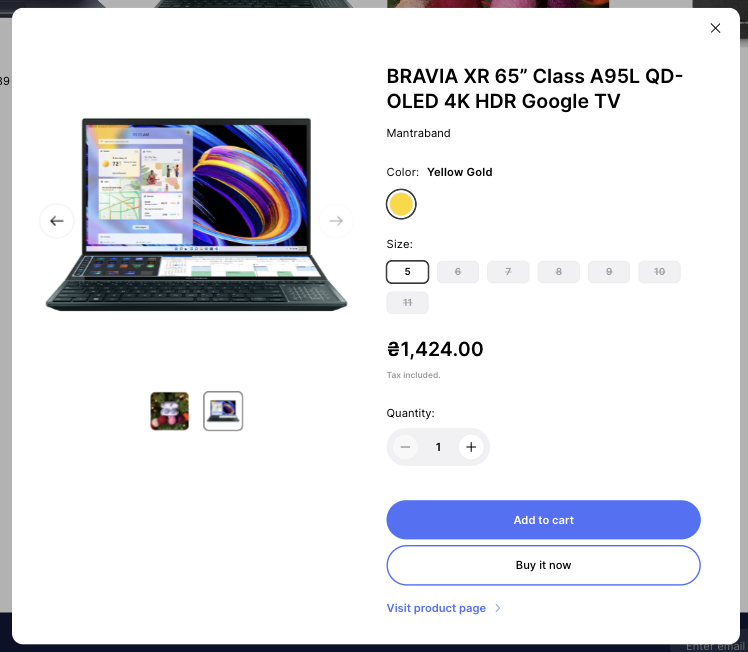
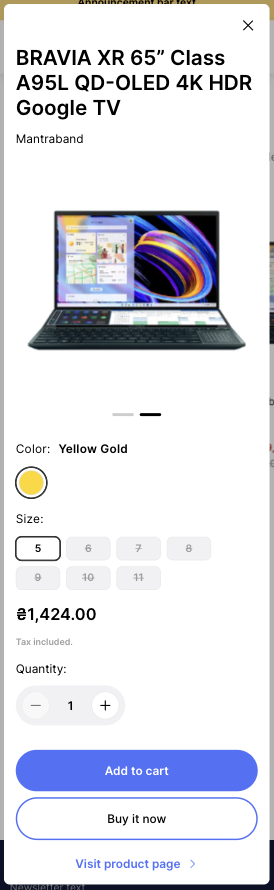
# Quick view

<figure><img src="https://3988388892-files.gitbook.io/~/files/v0/b/gitbook-x-prod.appspot.com/o/spaces%2FX39aWWRJk2Y01xGBqnJw%2Fuploads%2F9KqFJM4EEy52IhfETeIs%2F%D0%A1%D0%BD%D0%B8%D0%BC%D0%BE%D0%BA%20%D1%8D%D0%BA%D1%80%D0%B0%D0%BD%D0%B0%202024-03-21%20%D0%B2%2014.03.35.png?alt=media&#x26;token=03f4d884-fb70-447b-8cd9-35b9aaf81dd1" alt=""><figcaption></figcaption></figure>

<figure><img src="https://3988388892-files.gitbook.io/~/files/v0/b/gitbook-x-prod.appspot.com/o/spaces%2FX39aWWRJk2Y01xGBqnJw%2Fuploads%2FsphQC8eqzHb2j3117U5N%2F%D0%A1%D0%BD%D0%B8%D0%BC%D0%BE%D0%BA%20%D1%8D%D0%BA%D1%80%D0%B0%D0%BD%D0%B0%202024-03-21%20%D0%B2%2014.04.47.png?alt=media&#x26;token=2e4644b6-7d7d-4d6d-8778-16aa1aed4cfc" alt=""><figcaption></figcaption></figure>

<figure><img src="https://3988388892-files.gitbook.io/~/files/v0/b/gitbook-x-prod.appspot.com/o/spaces%2FX39aWWRJk2Y01xGBqnJw%2Fuploads%2F73O3QjW9sROo6gYSvRYS%2FUntitled%20(13).png?alt=media&#x26;token=caff715c-ee7b-47b8-ac37-b9fff9871878" alt=""><figcaption></figcaption></figure>

This block of settings is intended for general settings of the **Quick view** on the site.

In order to get to the **Quick view** settings block, you need to go to **`Customizer`** → **`Theme Settings`** → **`Quick view`**.

## **Quick view settings**

### General

<figure><img src="https://3988388892-files.gitbook.io/~/files/v0/b/gitbook-x-prod.appspot.com/o/spaces%2FX39aWWRJk2Y01xGBqnJw%2Fuploads%2FJ9tZcaMDYIdueYXwSIg1%2F%D0%A1%D0%BD%D0%B8%D0%BC%D0%BE%D0%BA%20%D1%8D%D0%BA%D1%80%D0%B0%D0%BD%D0%B0%202024-03-06%20%D0%B2%2017.41.21.png?alt=media&#x26;token=a5293dd0-9e7c-4e7b-b085-76f739a7c49e" alt=""><figcaption></figcaption></figure>

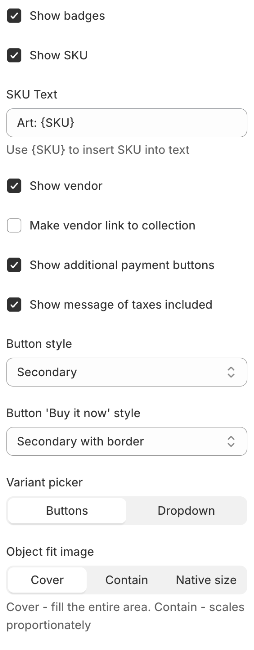
1. **`Show badges`** - the setting allows you to display or not display badges;
2. **`Show SKU`** - the setting allows you to display or not display SKU;
3. **`SKU Text` -** text displayed with the SKU;
4. **`Show vendor`** - the setting allows you to display or not display vendor;
5. **`Make vendor link to collection` -** the setting allows you to make vendor text a link to the collection;
6. **`Show additional payment buttons`** - the setting allows you to display or not display dynamic checkout buttons;
7. **`Show message of taxes included`** - the setting allows you to display text if taxes are included;
8. **`Button style`** - the setting allows you to choose the style of the "Add to cart" button;
9. **`Button ‘Buy it now’ style`** - the setting allows you to choose the style of the "Buy it now" button;
10. **`Variant picker`** - select a view of variant options type. **Note:** if you have enabled a color swatch option then the option that is related to color swatch will be like a button. You can select “**Buttons**” or “**Dropdown**”
11. **`Object fit image`** - setting allows you to set the value for the object-fit property of the image.

### **Countdown timer**

<figure><img src="https://3988388892-files.gitbook.io/~/files/v0/b/gitbook-x-prod.appspot.com/o/spaces%2FX39aWWRJk2Y01xGBqnJw%2Fuploads%2FTmudv85IPu8dlijbZcNF%2FUntitled%20(14).png?alt=media&#x26;token=1c6b2aec-9c3e-4985-8e8f-4dd51abe05f0" alt=""><figcaption></figcaption></figure>

1. **`Show`** - if checked - the countdown timer will be shown;
2. **`Text`** - Text before countdown timer;
3. **`Icon`** - Image before countdown timer. (Recommended size 48x48);
4. \*\*`Text color**` - Text before countdown timer color;
5. **`Timer text color`** - Timer cells text color;
6. **`Timer background color`** - Timer cells background color.

<figure><img src="https://3988388892-files.gitbook.io/~/files/v0/b/gitbook-x-prod.appspot.com/o/spaces%2FX39aWWRJk2Y01xGBqnJw%2Fuploads%2Fcrr1Z5QDDwKG8wwGCFWk%2FUntitled%20(15).png?alt=media&#x26;token=fba8ef22-cdbc-4f49-ae08-79b1bafdb599" alt=""><figcaption></figcaption></figure>

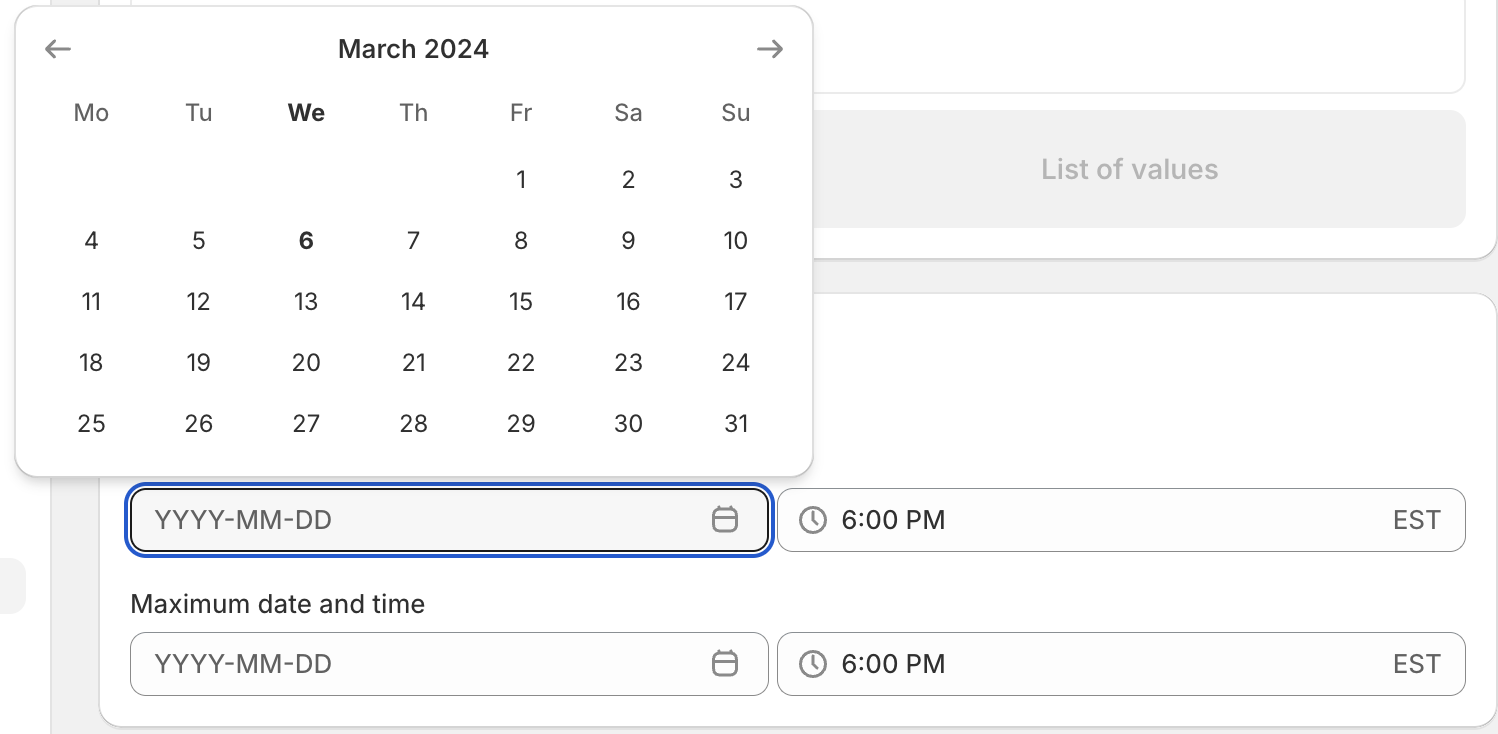
**To show the countdown timer:**

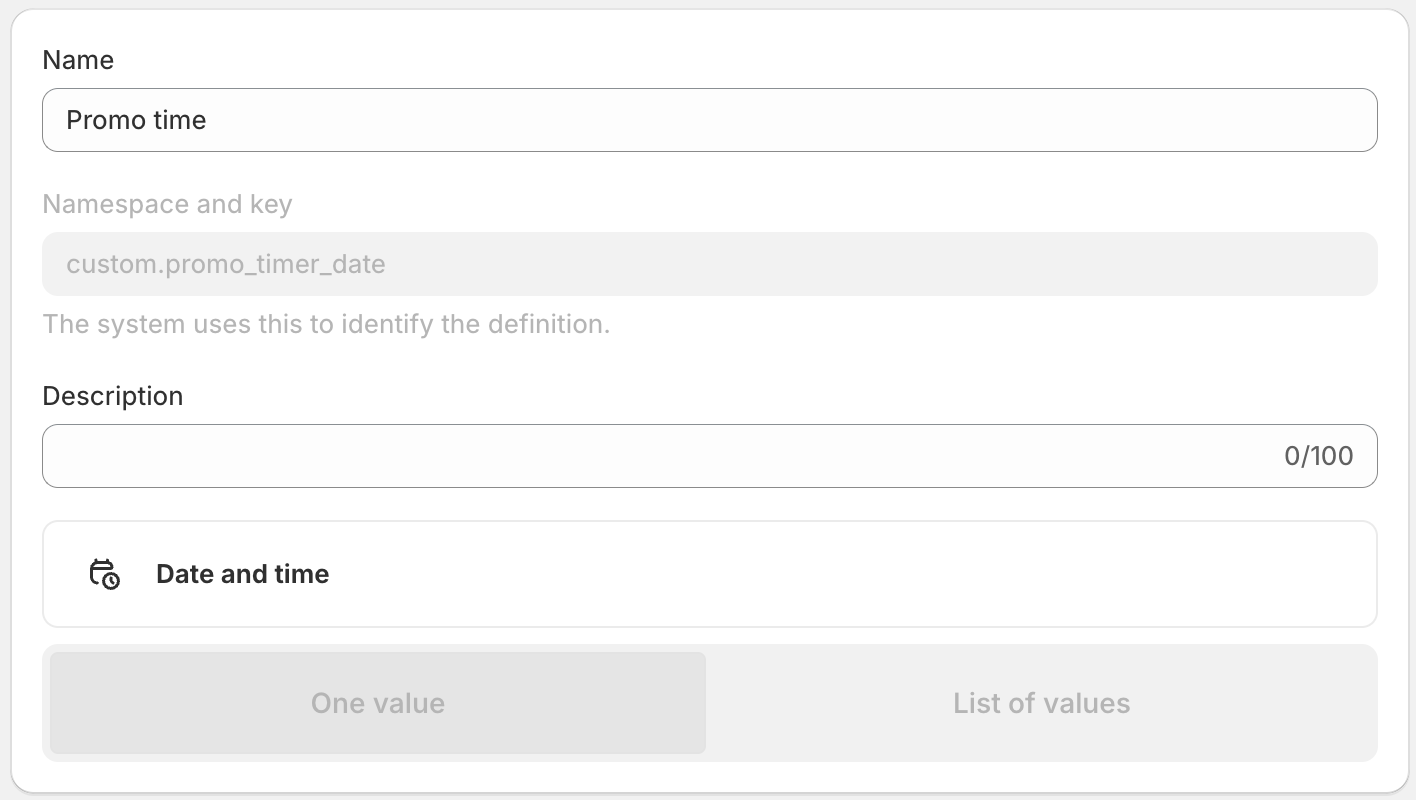
* Create product metafield with **Name**: “Promo time”, **Namespace and key**: **`custom.promo_timer_date`**. **Content type** must be **`Date and time`**;

<figure><img src="https://3988388892-files.gitbook.io/~/files/v0/b/gitbook-x-prod.appspot.com/o/spaces%2FX39aWWRJk2Y01xGBqnJw%2Fuploads%2FzDhqf6Rc0UNB49iXinpV%2F%D0%A1%D0%BD%D0%B8%D0%BC%D0%BE%D0%BA%20%D1%8D%D0%BA%D1%80%D0%B0%D0%BD%D0%B0%202024-03-06%20%D0%B2%2017.51.21.png?alt=media&#x26;token=ceb25dec-8fe0-4b28-816b-97031354bc75" alt=""><figcaption></figcaption></figure>

* Add promo time to the product

<figure><img src="https://3988388892-files.gitbook.io/~/files/v0/b/gitbook-x-prod.appspot.com/o/spaces%2FX39aWWRJk2Y01xGBqnJw%2Fuploads%2Fxr0XK6ydi9mPQA8rKL3V%2F%D0%A1%D0%BD%D0%B8%D0%BC%D0%BE%D0%BA%20%D1%8D%D0%BA%D1%80%D0%B0%D0%BD%D0%B0%202024-03-06%20%D0%B2%2017.51.48.png?alt=media&#x26;token=59dc173a-7046-4d34-a070-7fc93aca330c" alt=""><figcaption></figcaption></figure>

## Product Settings

In order to get to the **Product** settings block, you need to go to **`Customizer`** → **`Theme Settings`** → **`Product`**.

<figure><img src="https://3988388892-files.gitbook.io/~/files/v0/b/gitbook-x-prod.appspot.com/o/spaces%2FX39aWWRJk2Y01xGBqnJw%2Fuploads%2FYG5gvj8W5ol2D9fbuFkk%2FUntitled%20(16).png?alt=media&#x26;token=ed43bfa2-4233-4adf-869c-4ae704b66ce6" alt=""><figcaption></figcaption></figure>

### General

<figure><img src="https://3988388892-files.gitbook.io/~/files/v0/b/gitbook-x-prod.appspot.com/o/spaces%2FX39aWWRJk2Y01xGBqnJw%2Fuploads%2FKuq9Mpd19AMJuKUhZA8k%2F%D0%A1%D0%BD%D0%B8%D0%BC%D0%BE%D0%BA%20%D1%8D%D0%BA%D1%80%D0%B0%D0%BD%D0%B0%202024-03-06%20%D0%B2%2017.53.04.png?alt=media&#x26;token=78f1fc4f-d108-4d85-8a85-120a3c038ae6" alt=""><figcaption></figcaption></figure>

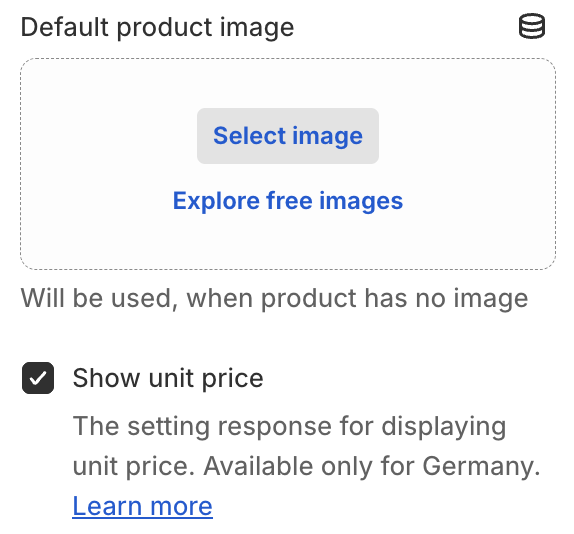
1. **`Default product image`** - this image will be used when the product has no image;
2. **`Show unit price`** - the setting is responsible for displaying the **Unit price**. More information here - <https://help.shopify.com/en/manual/intro-to-shopify/initial-setup/sell-in-germany/price-per-unit>.

### Swatches

<figure><img src="https://3988388892-files.gitbook.io/~/files/v0/b/gitbook-x-prod.appspot.com/o/spaces%2FX39aWWRJk2Y01xGBqnJw%2Fuploads%2F1AzSipoIoulIJxkVrKOT%2F%D0%A1%D0%BD%D0%B8%D0%BC%D0%BE%D0%BA%20%D1%8D%D0%BA%D1%80%D0%B0%D0%BD%D0%B0%202024-03-06%20%D0%B2%2017.53.38.png?alt=media&#x26;token=45a6d835-1ae7-4868-8e01-303770568dce" alt=""><figcaption></figcaption></figure>

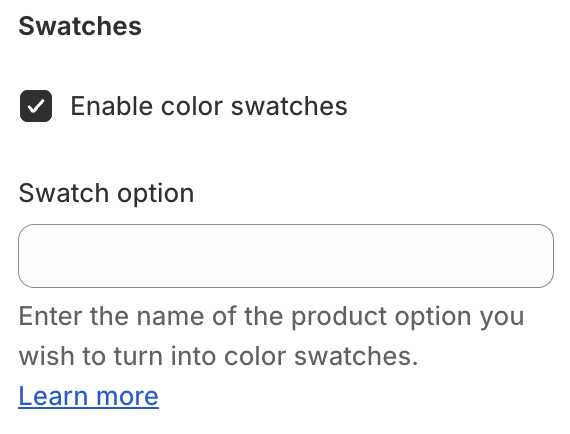
1. **`Enable color swatches`** - the setting is responsible for whether **color swatches** will be displayed on the product card. **Color swatches** depend on the **Color** option. The name of the color is split, and the last word is taken and substituted into the **CSS palette**. There is a chance that this color will not be in the **CSS palette**, then it will just be a white **swatch**. In this case, you must add an image to **Shopify** files of `1*1 px` size in `.png` format with the `swatch-` prefix. For example, the image name for **banana-yellow** would be `swatch-banana-yellow.png`;
2. **`Swatch option`** - \*\*\*\*the setting is intended for stores that have a different option for **color swatches** than **color**. For example, a user has a purely German store, whose color option is called - `Farbe`, thus the user will need to specify a name for this setting. The default value is `Color`.