> For the complete documentation index, see [llms.txt](https://utd-bv.gitbook.io/manual-shopify-theme-ultra/llms.txt). Markdown versions of documentation pages are available by appending `.md` to page URLs; this page is available as [Markdown](https://utd-bv.gitbook.io/manual-shopify-theme-ultra/templates/contact-template.md).
# Contact template
## For Customers
## Adding a Section
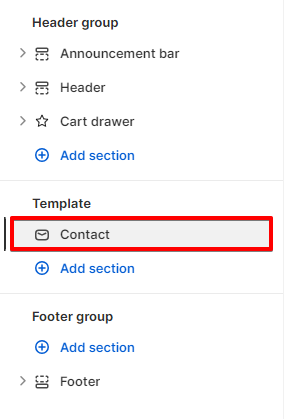
The section is static on a **contact page** template, it was added initially and cannot be removed.
## Section settings
### Banner
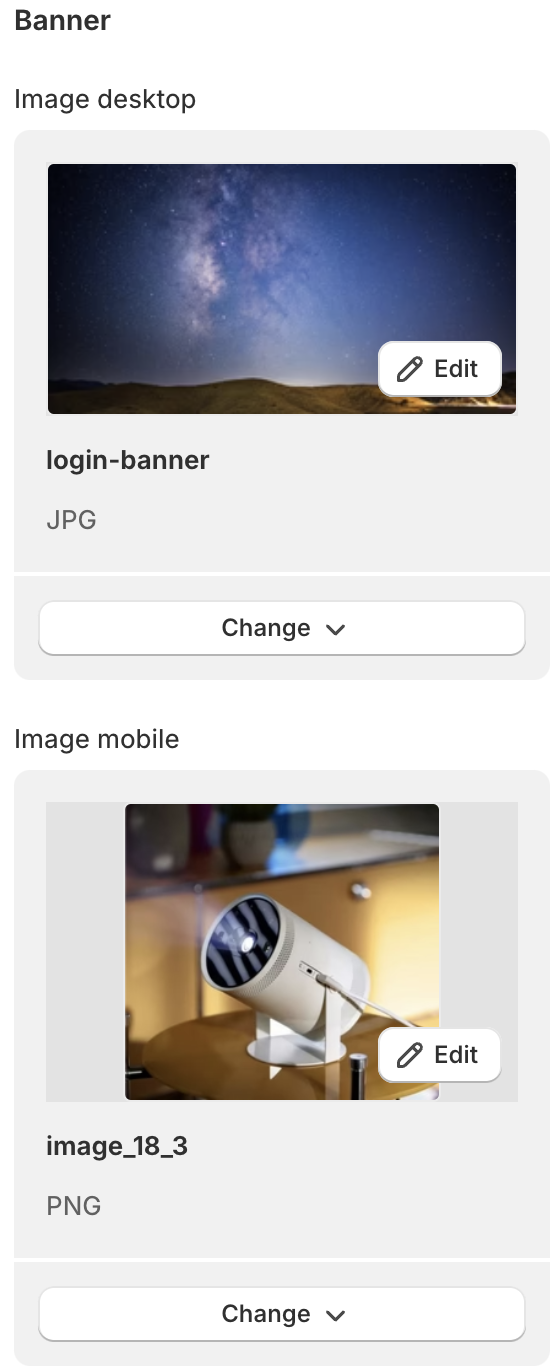
1. **`Image desktop`** - the setting allows you to set the banner image for the **desktop**;
2. **`Image mobile`** - the setting allows you to set the banner image for the mobile;
### General
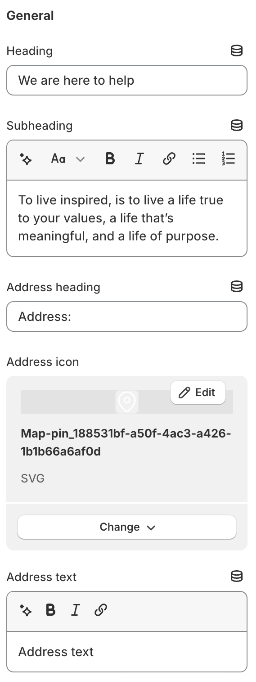
1. **`Heading`** - the setting allows you to set the title for the contact section;
2. **`Subheading`** - the setting allows you to set the subtitle for the contact section;
3. **`Address heading`** - the setting allows you to set the title for the address info;
4. **`Address icon`** - the setting allows you to set the icon for the address info;
5. **`Address text`** - the setting allows you to set the text for the address info;
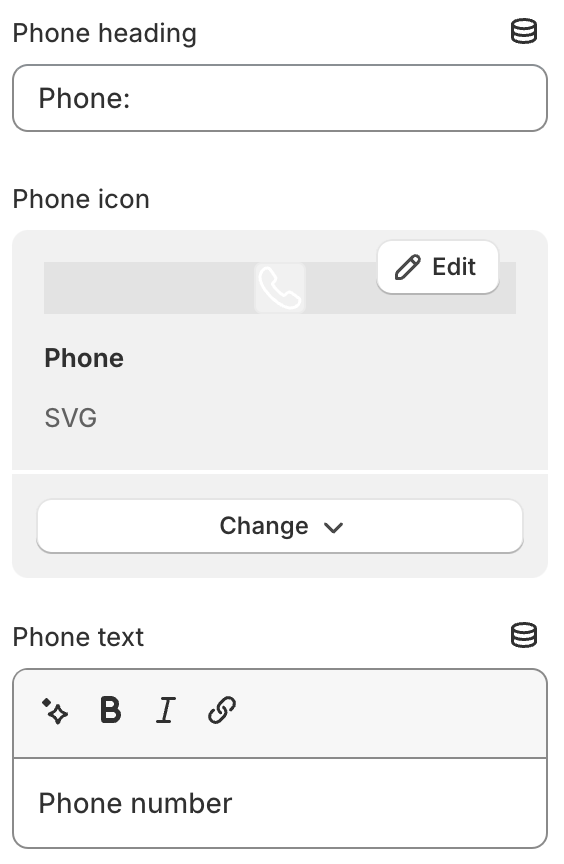
6. **`Phone heading`** - the setting allows you to set the title for the phone info;
7. **`Phone icon`** - the setting allows you to set the icon for the phone info;
8. **`Phone text`** - the setting allows you to set the text for the phone info;
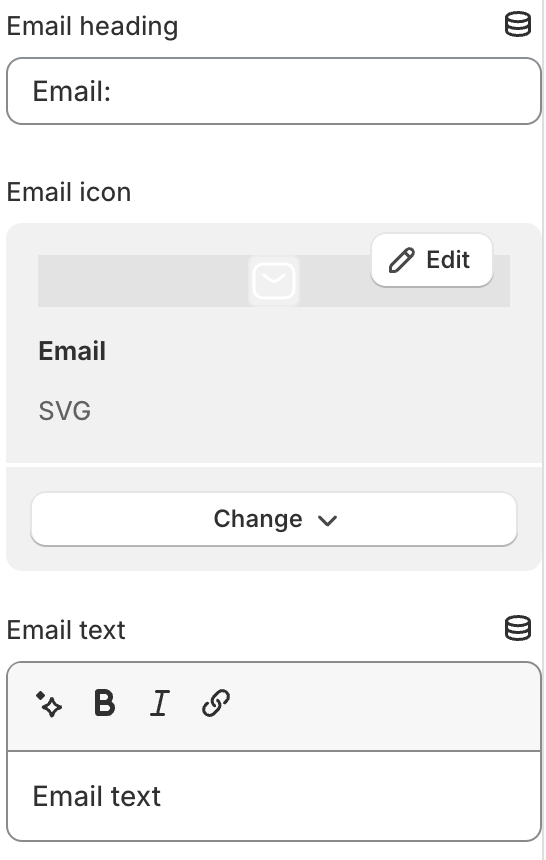
9. **`Email heading`** - the setting allows you to set the title for the email info;
10. **`Email icon`** - the setting allows you to set the icon for the email info;
11. **`Email text`** - the setting allows you to set the text for the email info;
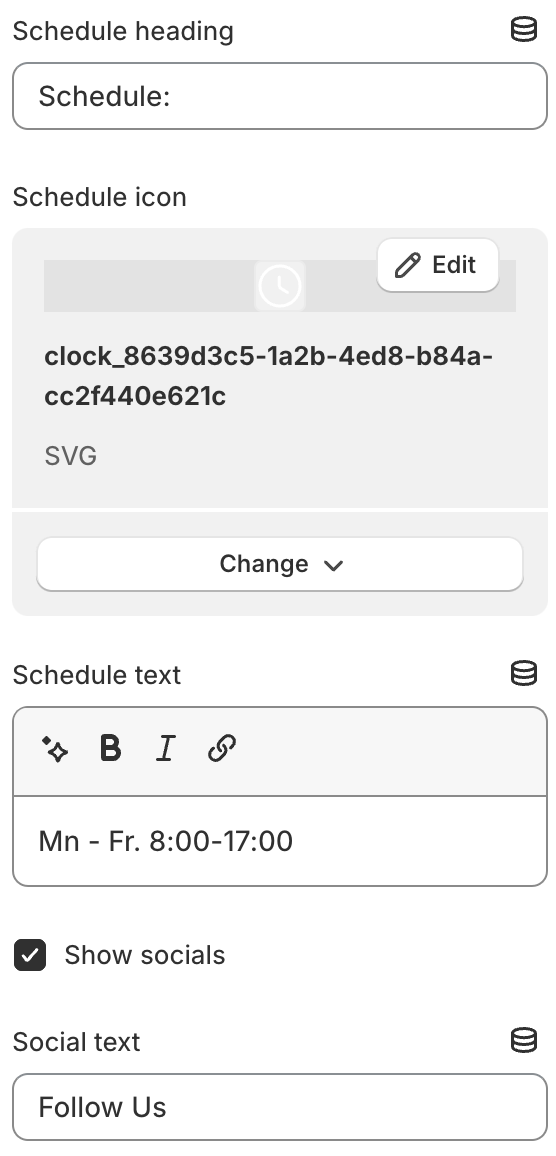
12. **`Schedule heading`** - the setting allows you to set the title for the schedule info;
13. **`Schedule icon`** - the setting allows you to set the icon for the schedule info;
14. **`Schedule text`** - the setting allows you to set the text for the schedule info;
15. **`Show socials`** - the setting enables or disables the display of social media;
16. **`Social text`** - the setting allows you to set the text before social media;
### Contact form
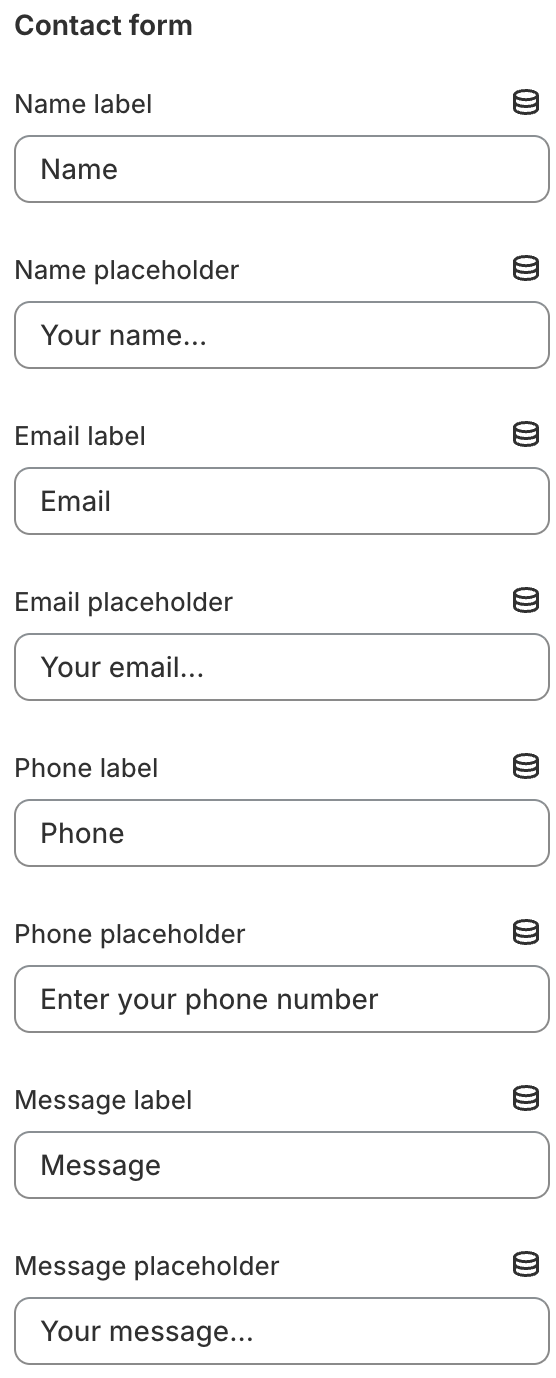
1. **`Name label`**- the setting allows you to set the label for the **Name** field;
2. **`Name placeholder`** - the setting allows you to set the placeholder for the **Name** field;
3. **`Email label`**- the setting allows you to set the label for the **`Email`** field;
4. **`Email placeholder`** - the setting allows you to set the placeholder for the **Email** field;
5. **`Phone label`**- the setting allows you to set the label for the **Phone** field;
6. **`Phone placeholder`** - the setting allows you to set the placeholder for the **Phone** field;
7. **`Message label`**- the setting allows you to set the label for the **Message** field;
8. **`Message placeholder`** - the setting allows you to set the placeholder for the **Message** field;
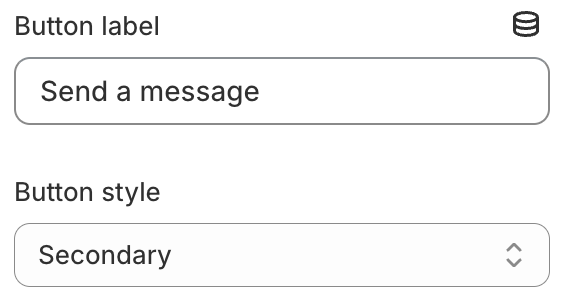
9. **`Button label`** - the setting allows you to set the text for the button.
10. **`Button style`** - the setting allows you to select the button style: primary / secondary / primary with border / secondary with border;
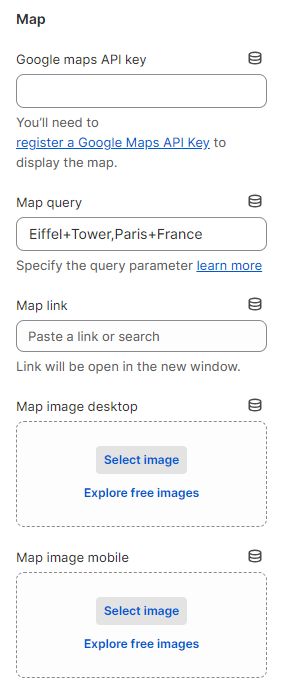
### Map
1. **`Google maps API key`** - the setting allows you to add a **Google Maps API key**. [Learn more](https://developers.google.com/maps/documentation/embed/get-api-key?hl=en) about how to create an API key;
2. **`Map query`** - the setting allows you to add a **query parameter** that is responsible for adding a point on the map. In our case, only the **place mode** has been added. You can add one point to the map in many ways. [Learn more](https://developers.google.com/maps/documentation/embed/embedding-map?hl=en#place_mode) about how to add a query parameter;
3. **`Map url`** - the setting allows you to set a link to the map;
4. **`Map image desktop`** - the setting allows you to set the map image for the **desktop**;
5. **`Map image mobile`** - the setting allows you to set the image for **mobile**.
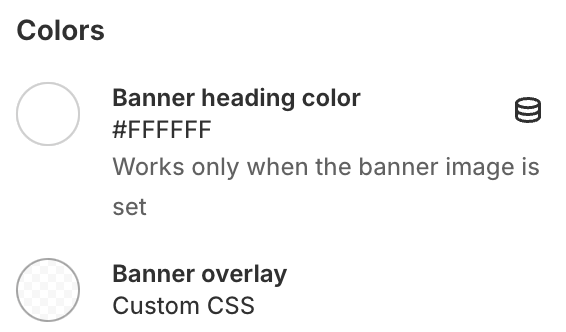
### Colors
1. **`Banner heading color`** - color for the banner heading;
2. **`Banner overlay`** - color for the banner overlay;
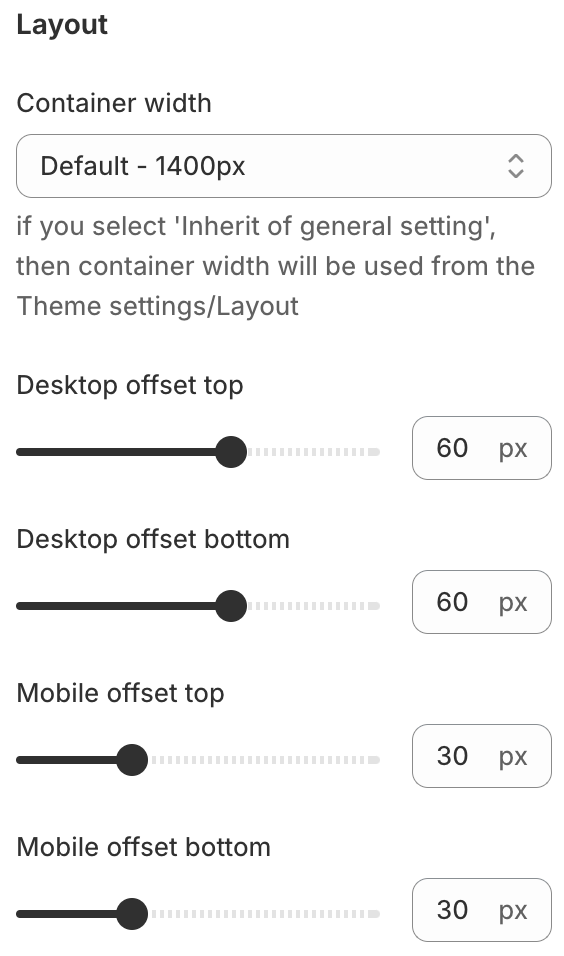
### Layout
1. **`Container width`** - a container width of the section. If “Inherit” value is selected then container width based on the group 'Layout' settings in the Theme settings;
2. **`Desktop offset top`** - the **top** indent of the section on the **desktop**;
3. **`Desktop offset bottom`** - the **bottom** indent of the section on the **desktop**;
4. **`Mobile offset top`** - the **top** indent of the section on the **mobile**;
5. **`Mobile offset bottom`** - the **bottom** indent of the section on the **mobile**.
## **Additional information**
1. The social media link settings are located in the general theme settings;
2. If the `Map url` or `Map image` fields are not specified in the section settings, the map will not be displayed;
3. The map link opens in a new window.